4.1 Reading the Diagram
Every qdbd build and qdbd serve page has the same layout: an explorer on the left, the canvas in the middle, the toolbar top right, and a details panel that opens on the right when you select a table.
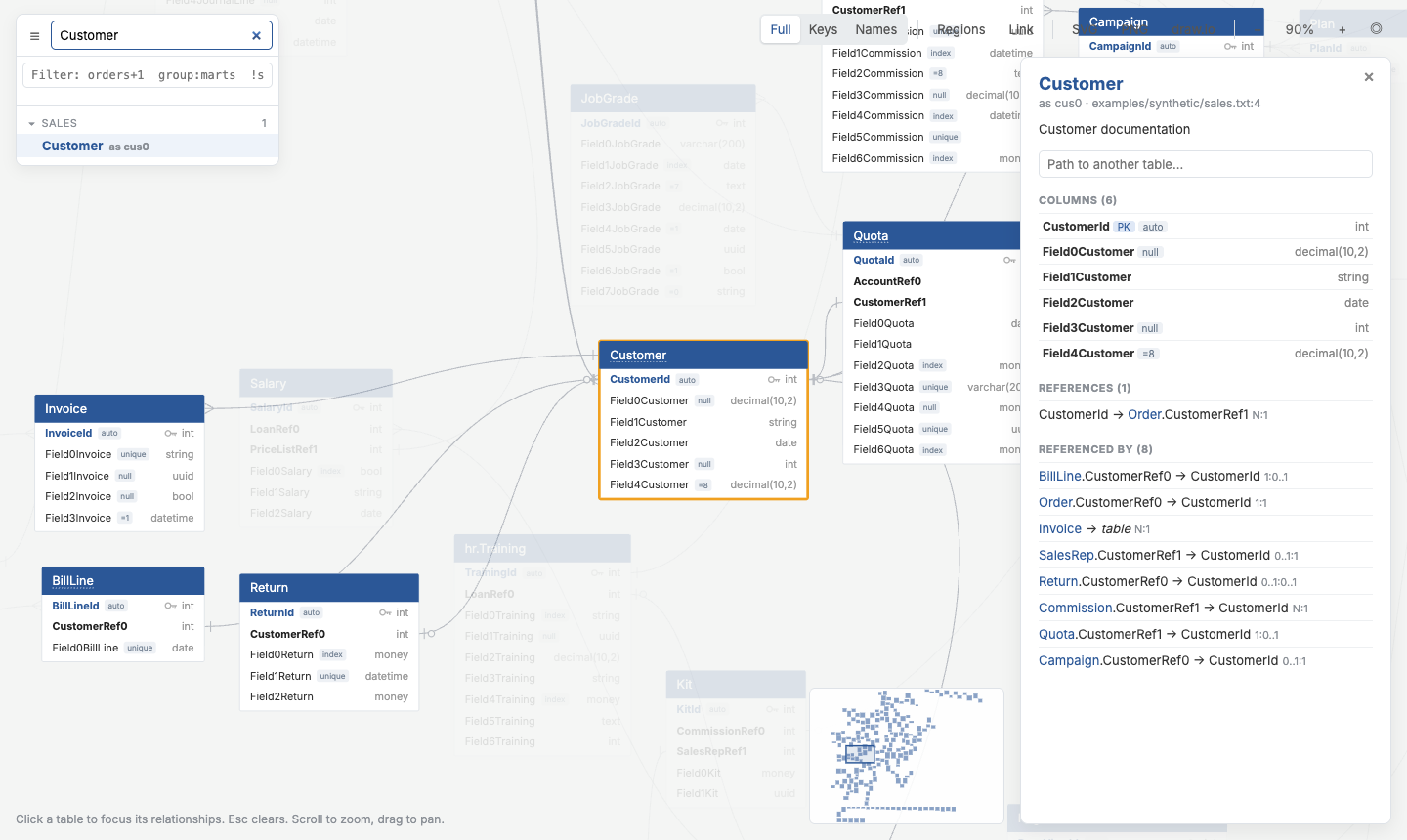
Tables
| Element | Meaning |
|---|---|
| Blue header | Table name (aliases appear in the explorer and details). Another colour means the table has a tag |
| Blue bold column + key icon | Primary key |
| Bold column | Foreign key, or a column used by a relationship |
| Grey text, right-aligned | Column type |
| Small grey tags | auto (IDENTITY), unique, index, null (nullable), =value (default) |
| Dotted underline | Has a doc comment: hover to read it |
Columns are NOT NULL unless tagged null, as in QuickDBD.
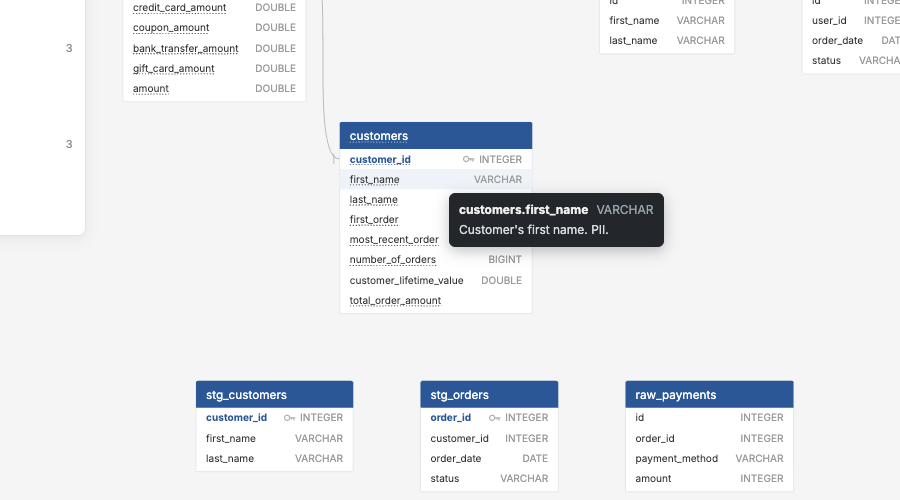
Relationship lines
Lines run from column to column; a table-level relationship attaches to the header. The ends show cardinality:
| End | Meaning |
|---|---|
| Short bar | exactly one |
| Crow's foot | many |
| Bar + circle | zero or one |
| Crow's foot + circle | zero or many |
Hovering a column highlights its lines and the columns at the other end.
Moving tables
Drag any table to rearrange the diagram; lines follow. In a built page or the live demo the new arrangement lasts until you reload. In qdbd serve it's saved to the layout file. Drag empty space to pan.
Explorer
The left panel lists every table, grouped by file (or by dbt folder after qdbd import dbt).
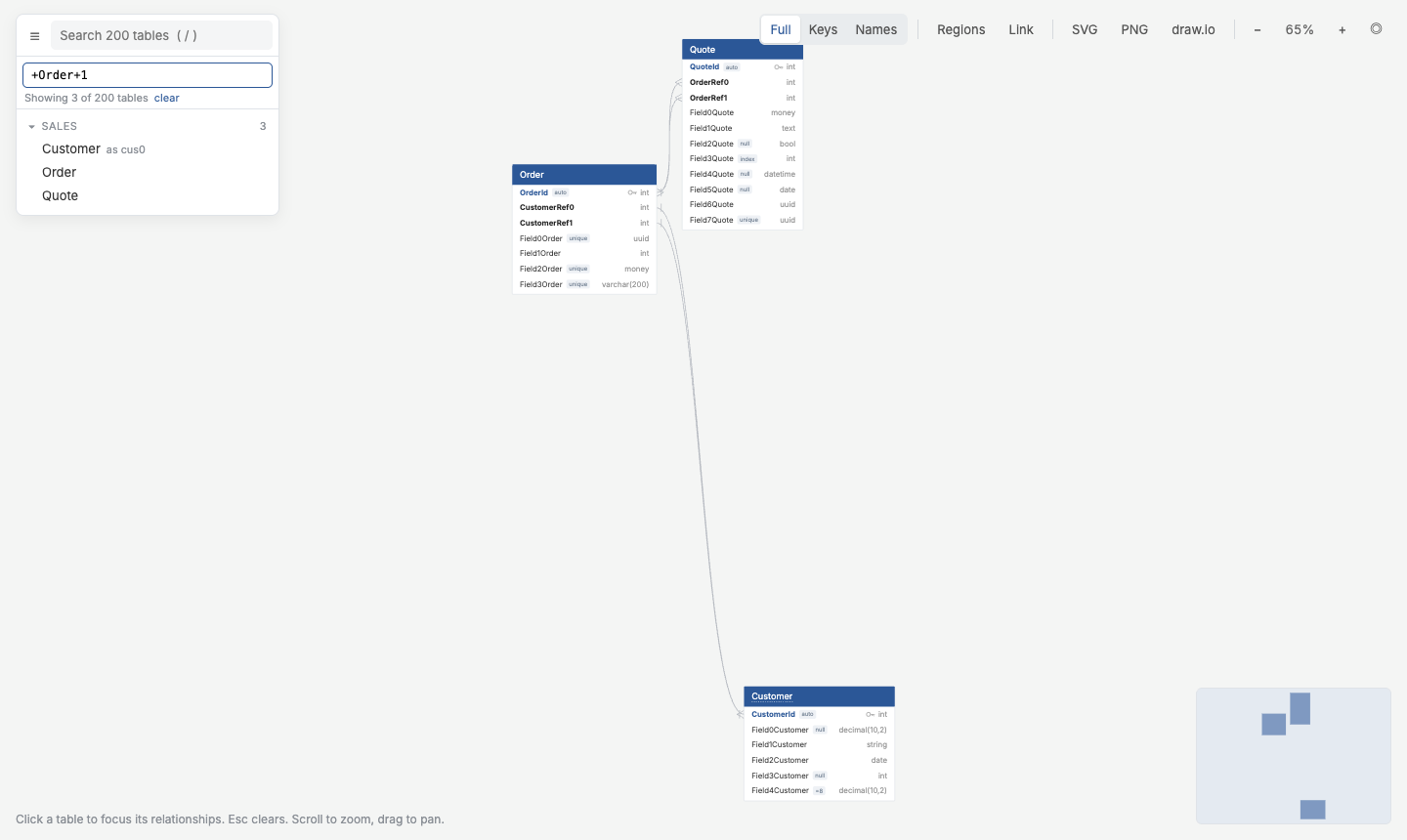
- Search with
/: matches names, aliases and groups. Enter jumps to the best match. - Filter with dbt-style selectors:
orders+1,group:marts,!stg_*. Only matching tables stay on the canvas, the explorer and the minimap. - Tags: when tables have tags, a chip per tag sits under the filter. Click one to show only that tag.
Details panel
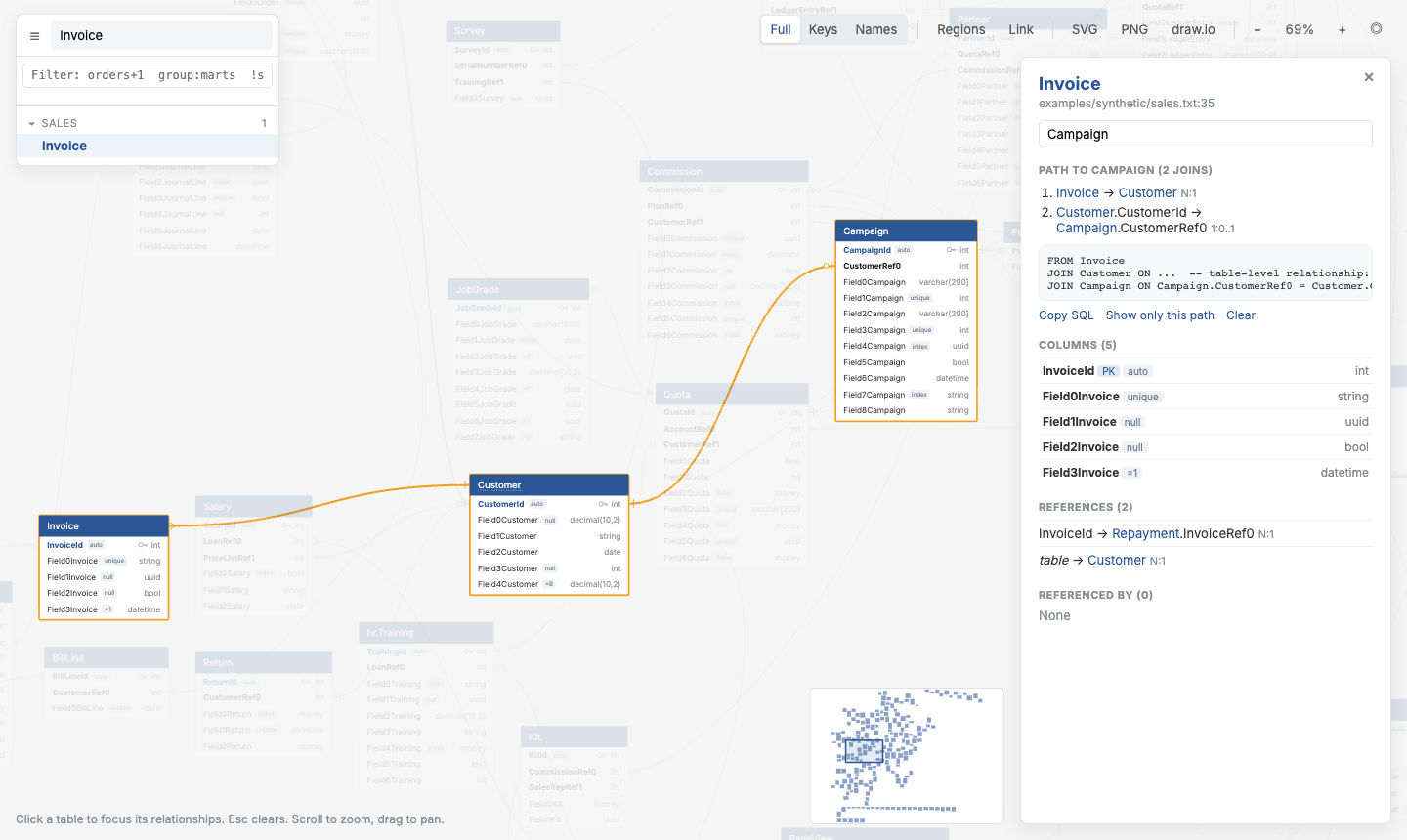
Click a table (on the canvas or in the explorer):
- Description, file and line.
- Columns: type, keys, tags and doc comments.
- References: the tables this one points to (its foreign keys).
- Referenced by: the tables pointing here.
- Path to another table: the shortest join path, highlighted on the canvas, with a ready SQL
JOIN.
Esc, ×, or clicking empty canvas closes it.
Toolbar
| Control | What it does |
|---|---|
| Full / Keys / Names | Collapse tables: all columns, only key and relationship columns, or only names |
| Regions | Shade an area per file / dbt folder (shown when there's more than one) |
| Link | Copy a URL to this exact view: filter, selected table, path, collapse mode, regions, zoom and position |
| SVG / PNG / draw.io | Download what's on screen (exports) |
| − 100% + ◎ | Zoom, or fit everything on screen |
The minimap (bottom right) shows where you are; click or drag it to move.
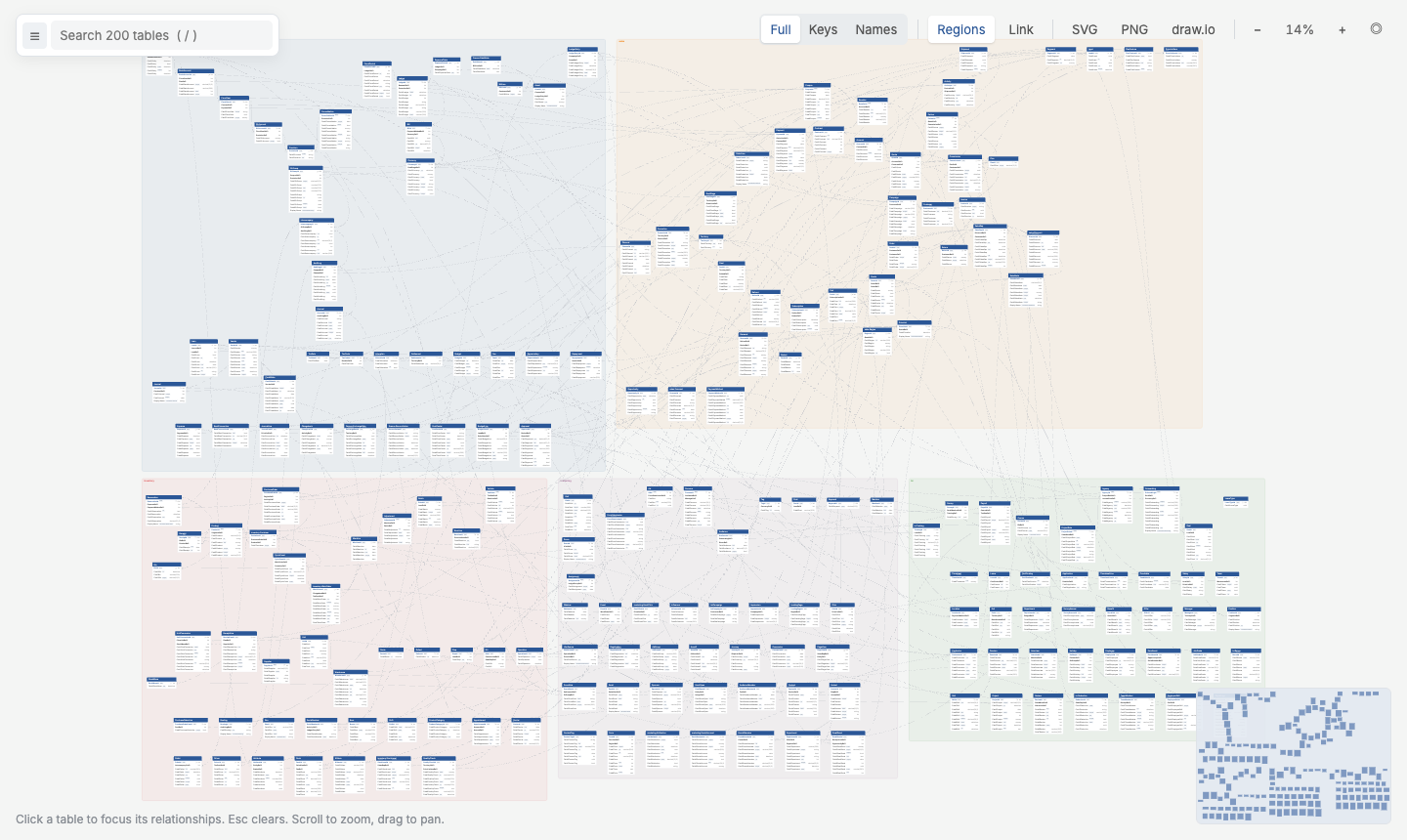
Regions
When a schema has several files or dbt folders, Regions draws a labelled, coloured area behind each group. They read best with --by-group, which arranges each group together (3.3 Table Positions).
Changes since a branch
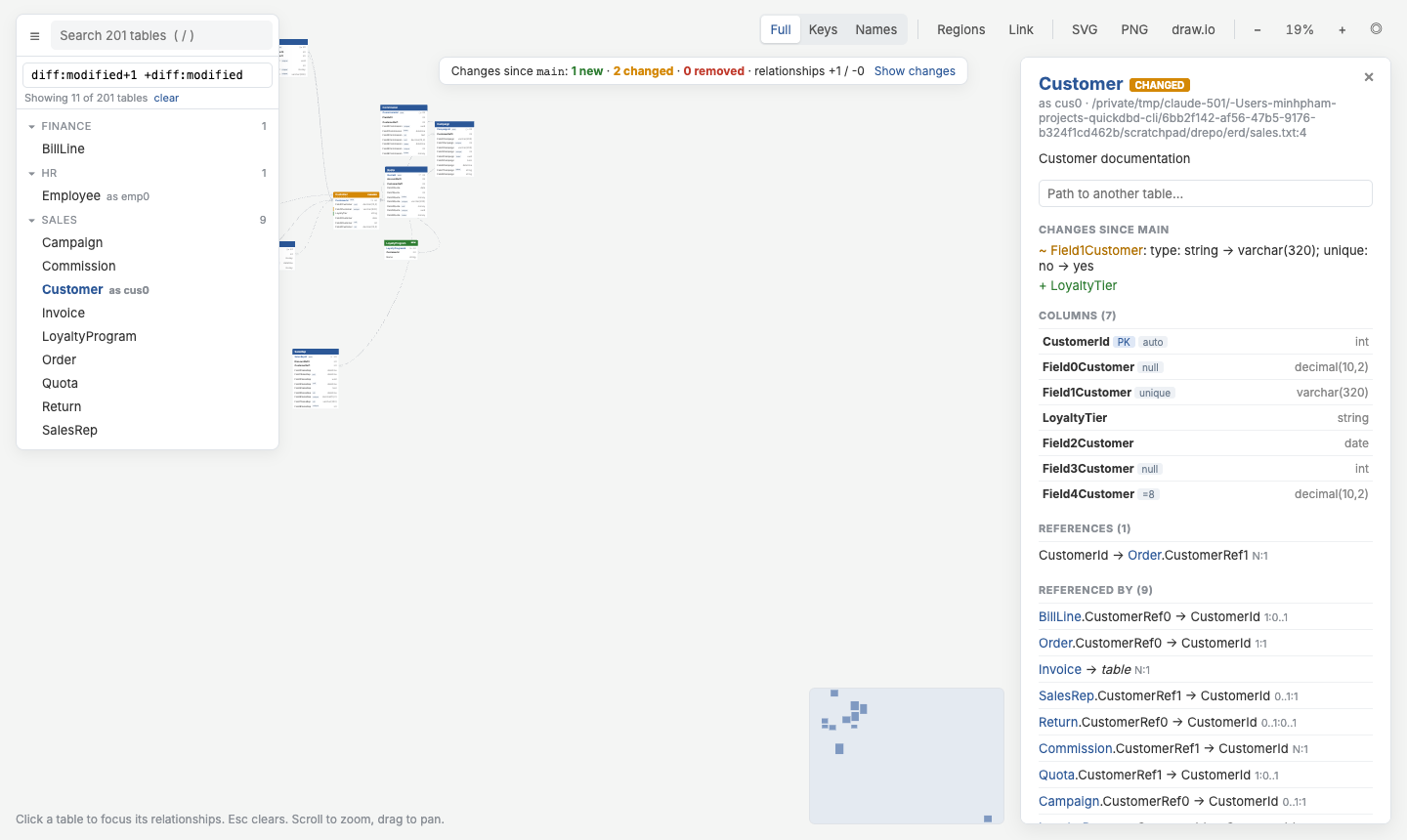
Pages built with --diff-base origin/main mark what changed:
- NEW tables have a green header, CHANGED tables an amber header;
- changed and added columns get a coloured bar;
- a banner summarises the changes, and Show changes filters to them plus their neighbours;
- the details panel lists every change, including removed columns.
See 6. Reviewing Changes.
In qdbd serve
The live editor adds:
- an editor pane with one tab per file (autosaves 1 s after you stop typing) and an error panel;
- dragged positions are saved to the layout file;
- if a file changes on disk while you have unsaved edits, a banner lets you keep yours or reload.